Last updated July 8, 2025
The "On Leave" function allows you to communicate to other users that you are on leave.
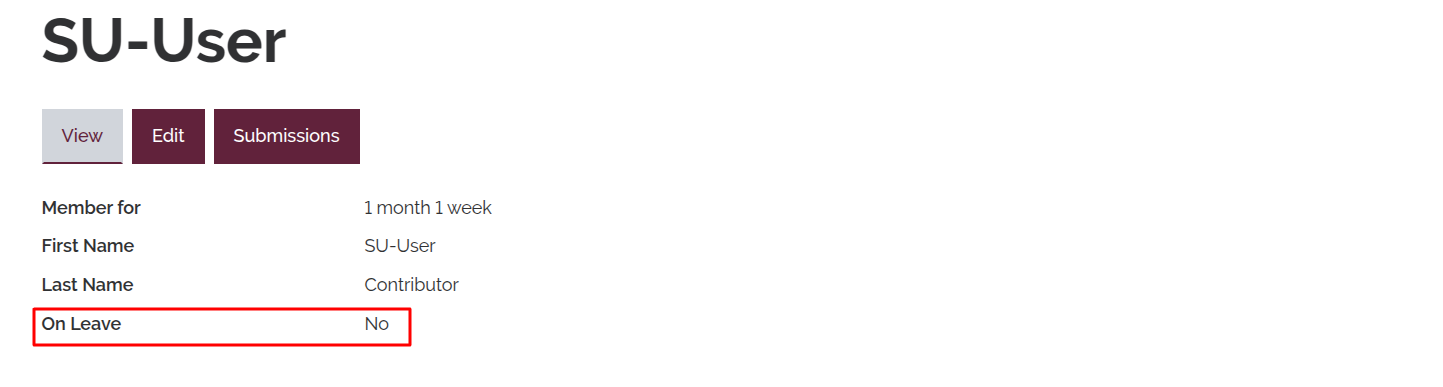
To navigate to the user profile page, click on your username on the top-right from anywhere in the back-end.

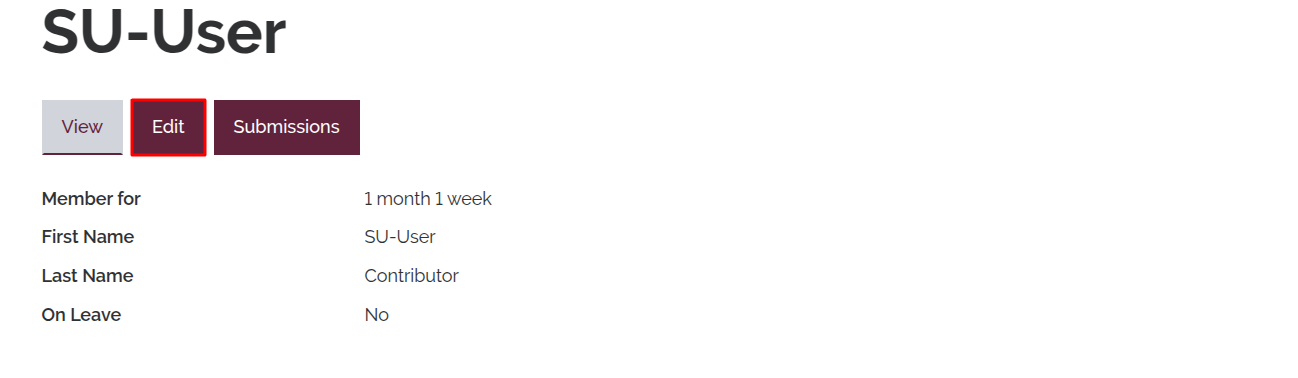
Click "Edit" on the user profile page.
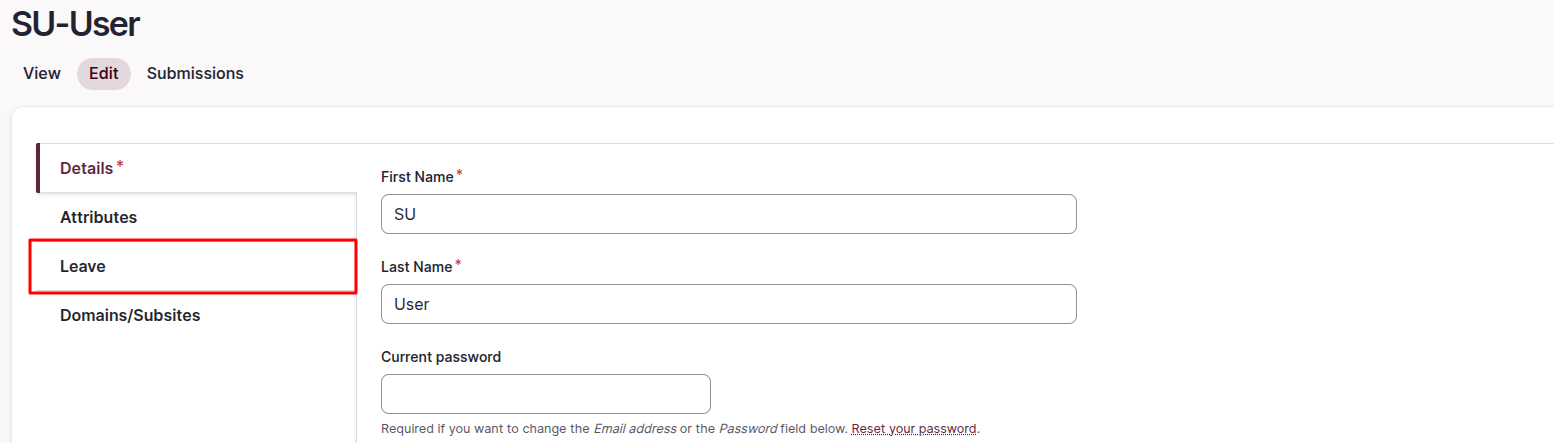
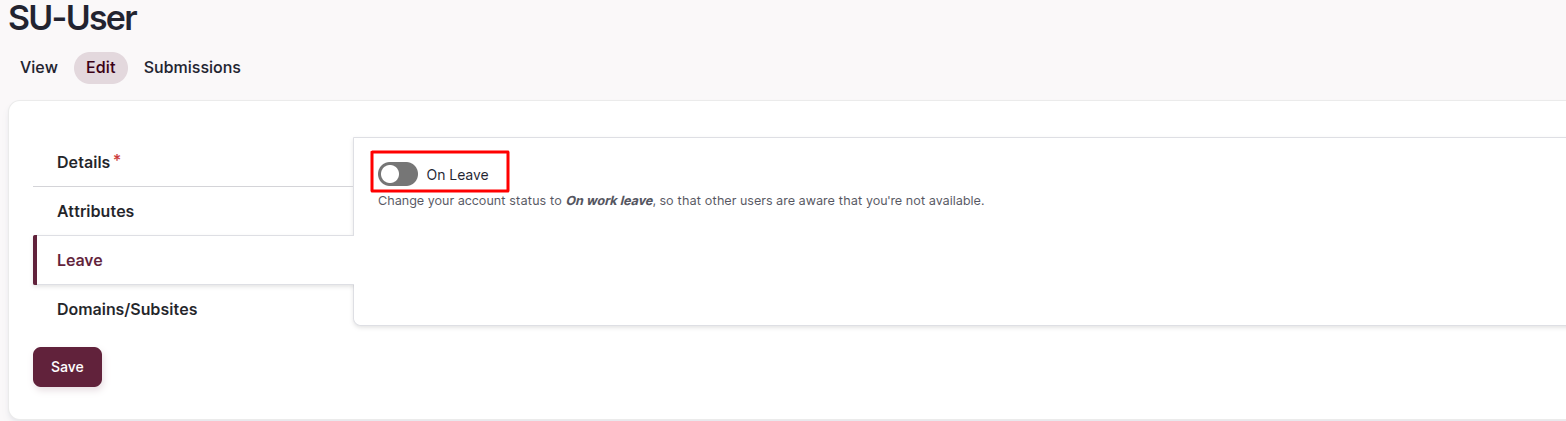
Once loaded into the user profile edit form, navigate to the "Leave" tab on the left-hand side of the form.
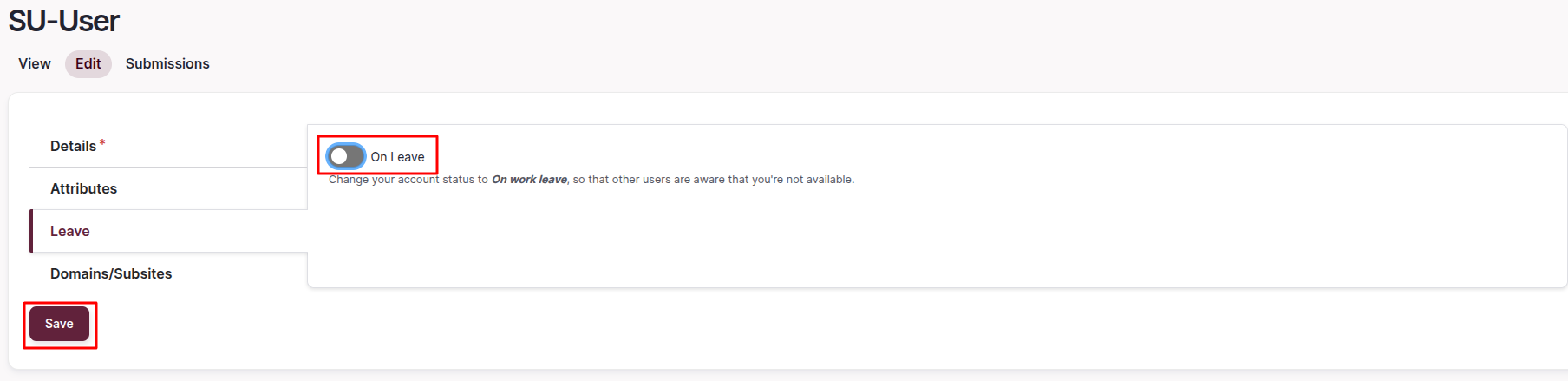
You will now see a toggle button for "On Leave". Enable this by clicking on it.
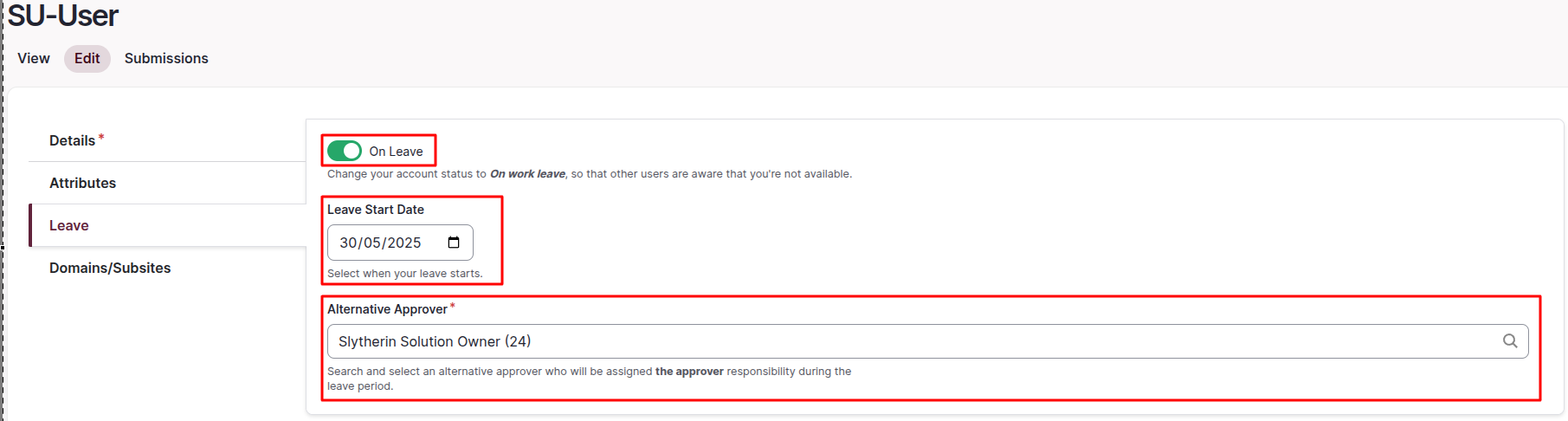
Once this has been enabled, fill out the new fields that appear. In the "Leave Start Date" field, you are able to select the date when your leave starts. In the "Alternative Approver" field, you are able to search for and assign a user as the "approver" of escalations and other requests during your leave period. Note that an approver won't inherit your rights, for example, if you are a Site owner and you select an approver that is a contributor, they won't be able to carry out tasks exclusive to Site owners, such as creating new pages.
Once all the details about your leave are set, click the "Save" button on the bottom left to apply the changes.
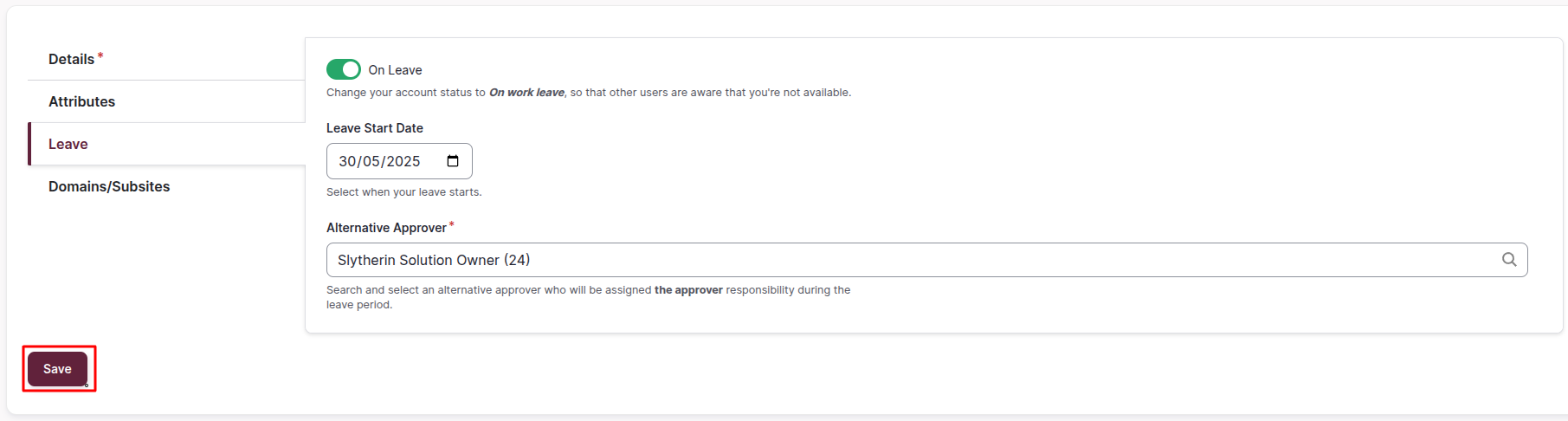
Once you have returned from leave, simply edit your user profile again, disable the "On Leave" toggle and click the "Save" button to indicate that you have returned from leave.