
Last updated July 8, 2025
- Overview
This article serves as a brief overview of the logged in layout. All areas shown in this article will be discussed in greater detail in their own respective Wiki entries later on.
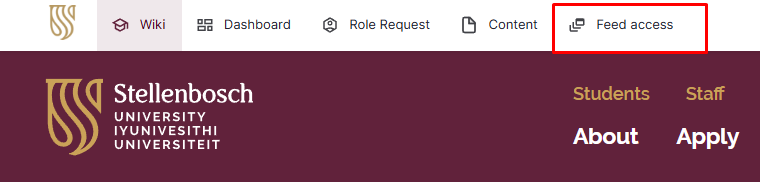
Once you are logged in you will see the menu items that you have access to at the top of your screen. When going through the rest of the Wiki articles, you may notice that the menu shown appears different from your own, that is because your menu has been limited to only the necessary items required for your role. Any items shown in the Wiki that you are unable to see, do not pertain to your role's requirements and are to be ignored.

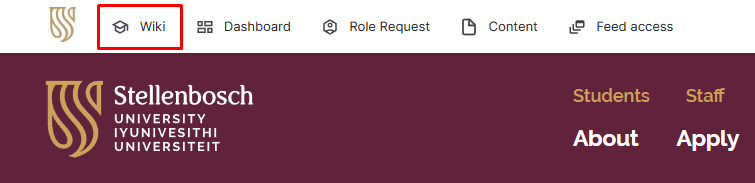
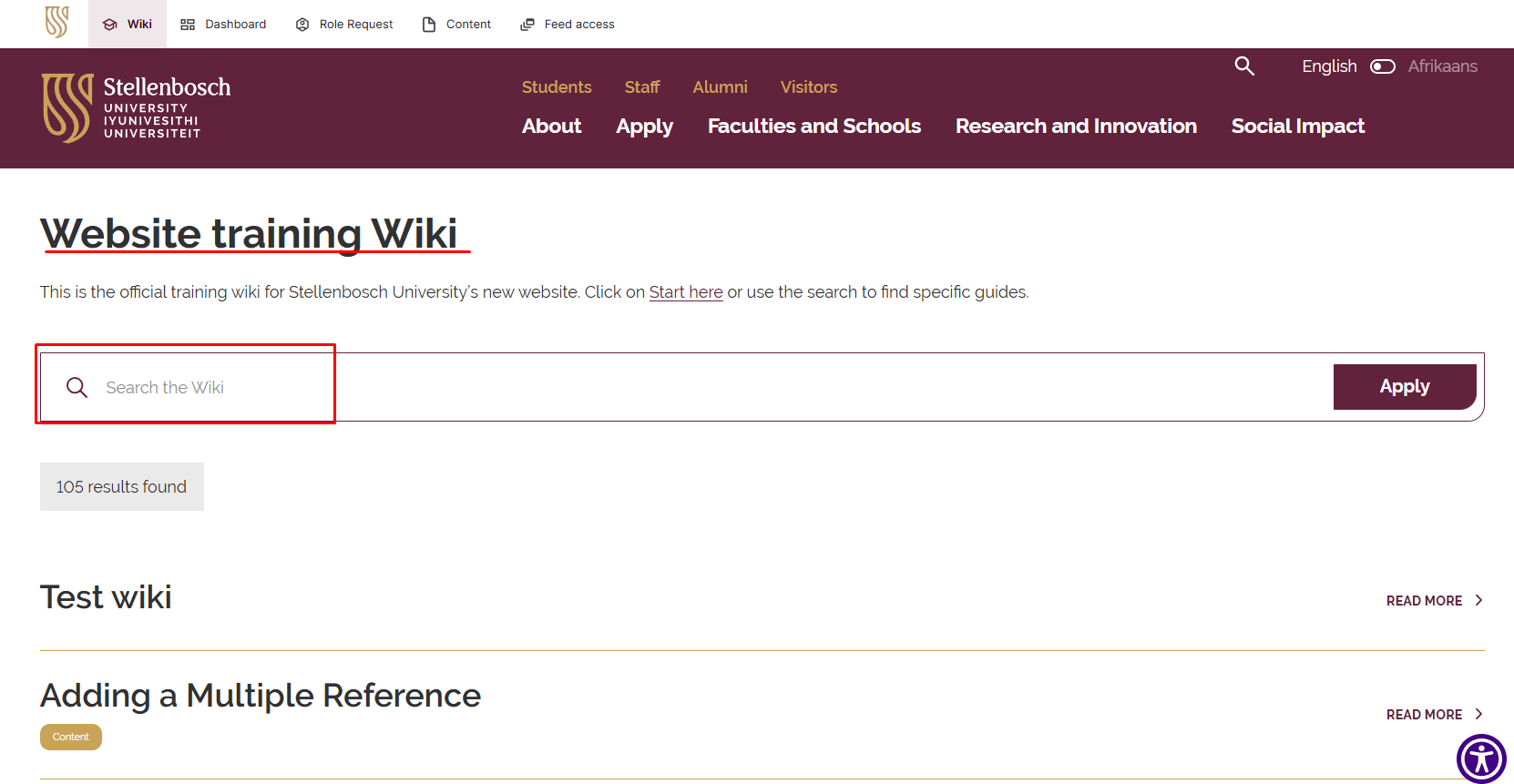
On this menu you will see the "Wiki" link. This link will take you to the Wiki landing page where you will be able to either search for specific Wiki articles or simply click on the "Start Here" link to begin reading through the Wiki content in its intended order.
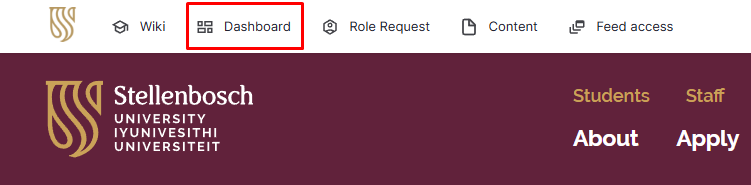
Next to the "Wiki" menu item you will find your "Dashboard" link. This will take you to your personalised dashboard and is where you will spend the majority of your time as it contains most the necessary content, links and other items required for your role.
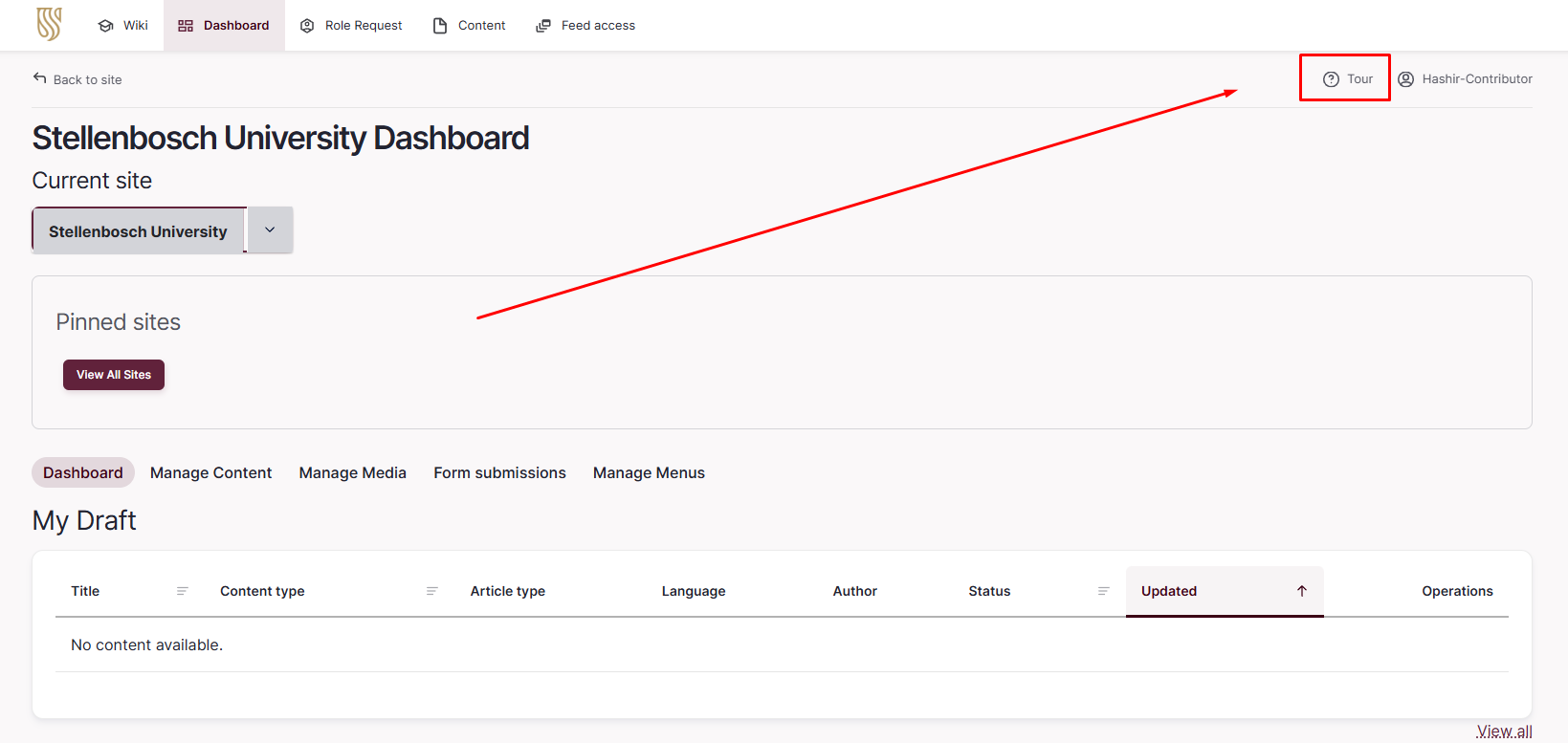
To better understand your Dashboard, simply click on the "Tour" button located next to your username in the top right corner of your screen. This will take you on a step-by-step guide of your Dashboard. We highly recommend making use of this functionality whenever it is available to you on a page. Your dashboard will also be discussed in greater detail in its own dedicated article later on.
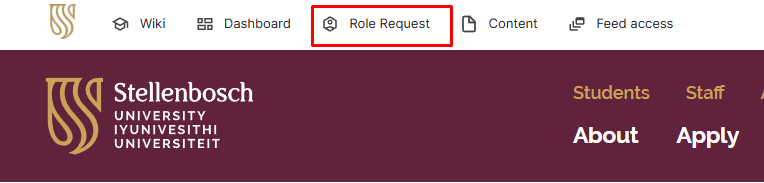
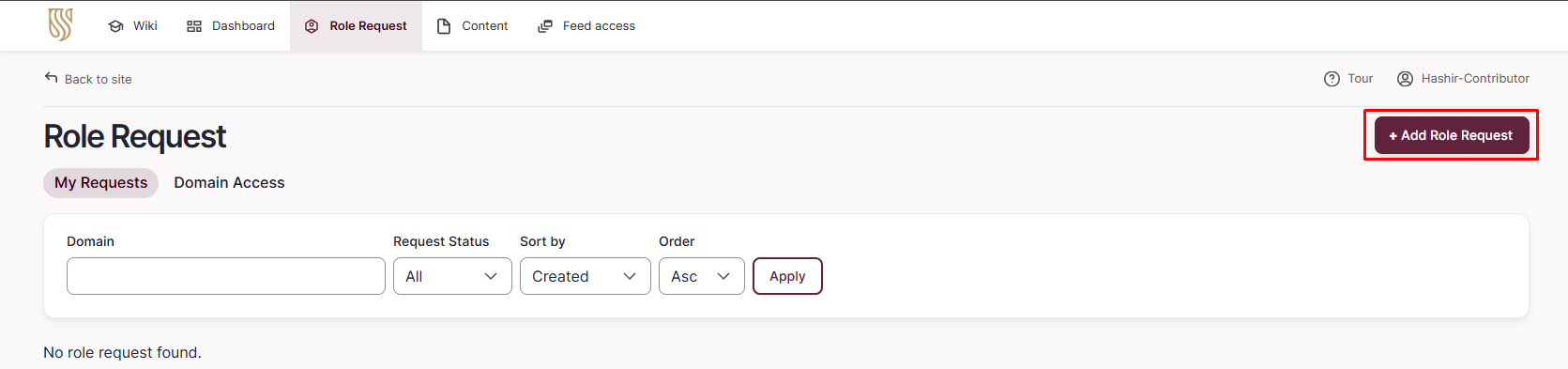
The following item on your menu is the "Role Request" button. This button leads to your "Role Request" dashboard where you will have an overview of your various role requests and their status. You can also apply for additional roles on this dashboard by clicking the "Add Role Request" button in the top right corner.
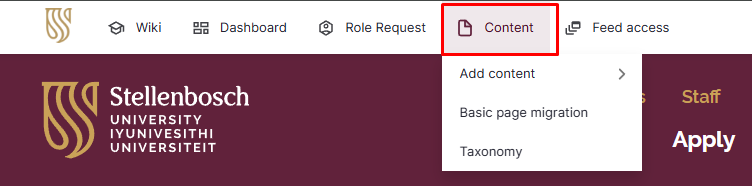
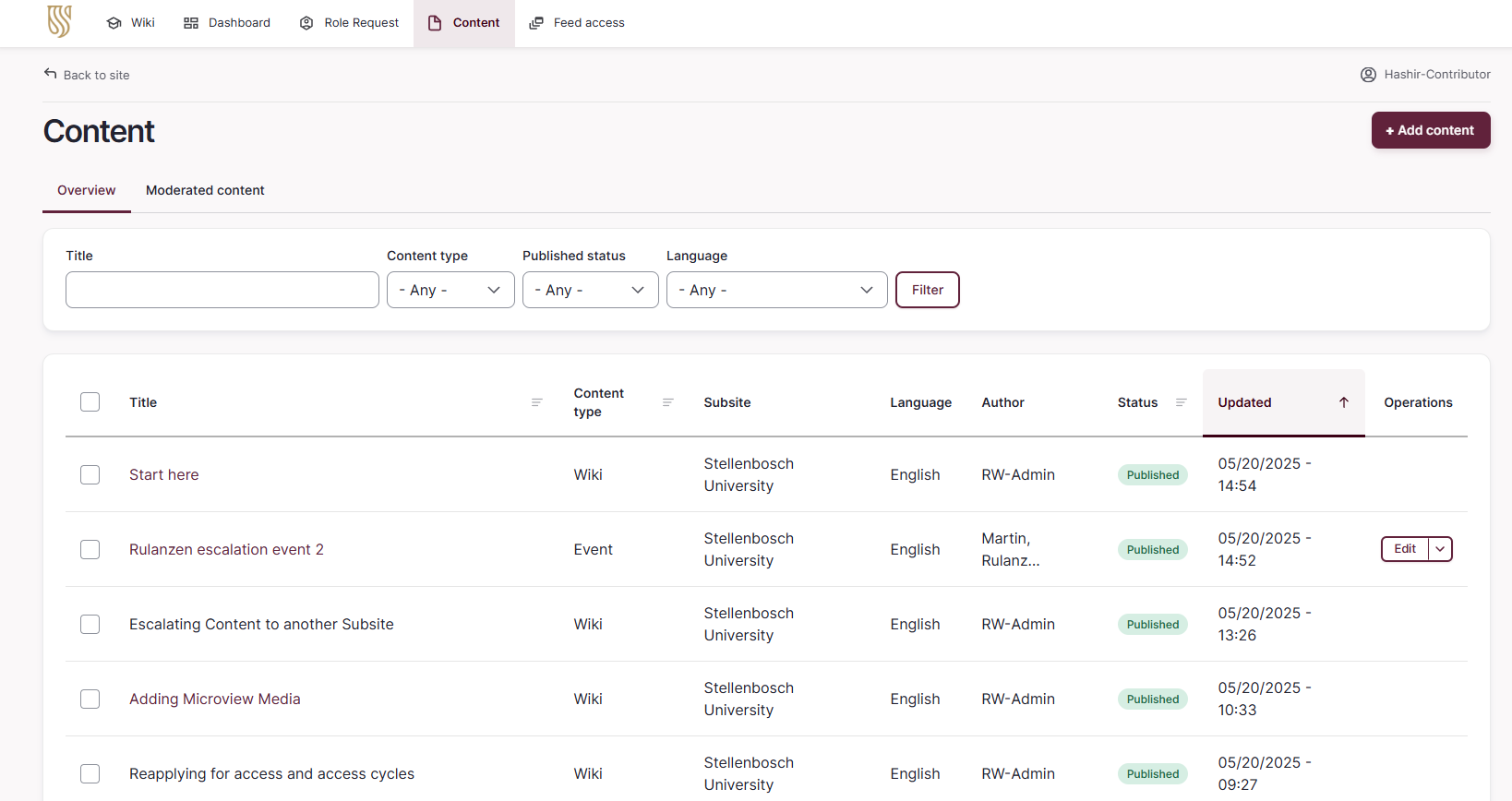
Next is the "Content" menu item. This menu item links to the "Content" dashboard and can also be hovered over for shortcuts to specific content actions and overview pages. From within the Content dashboard you are able to filter and view all content that you have access to as well as adding additional content using the "Add content" button located in the top right hand corner. Adding content is extensively covered later on in the Wiki.
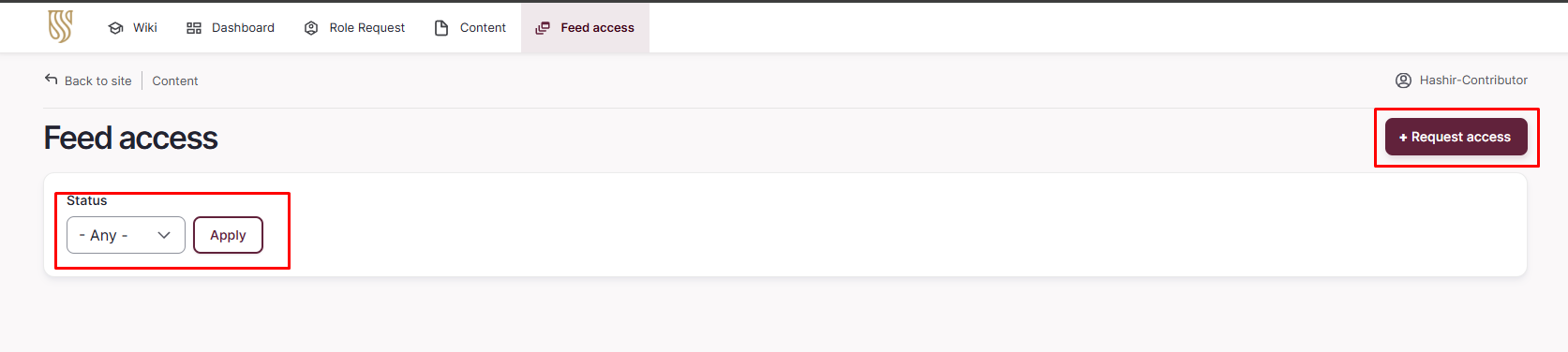
The final item located in your menu is the "Feed access" link. This will take you to your "Feed access" dashboard, where you can see the current feeds that you have access to as well as the status of any pending Feed access requests. You can also apply for additional feed access by clicking on the "Request access" button in the top right hand corner. The Wiki contains articles detailing this process later on.
The last important item you will see is your "Username" in the top right corner. When hovering over your username you will be presented with the options to view your profile, edit your profile, or logout of the site. Editing your profile will be covered at a later stage in the Wiki.
