
Last updated August 18, 2025
- Permissions
- Access
First time users
- If you are a first time user, you must do the Role request before you can proceed to the rest of the training.
- You must select the type of Role you will need on the website and the subsite you will be working on.
- The Role you select determines the training you will be required to complete.
- Once submitted, the site owner/s of the subsites you requested access to will review your request and either approve or deny it. You will receive an email with the decision.
- After receiving the Role confirmation, you can refresh the Wiki page, and more training will be available to you, based on your role.
- Note that you won't be able to access your content or perform any other functions on the site until you have completed your training. Your role only becomes fully active once you've completed training.
Important note: if you are the Site owner of a faculty subsite, you must do additional Role requests for every subsite within your faculty's hierarchy (each department in other words) to ensure that you receive Role requests for your faculty.
Requesting a role
Access the Role Request section: On the menu, navigate to "Role Request". You can open the Role Request in a new tab.
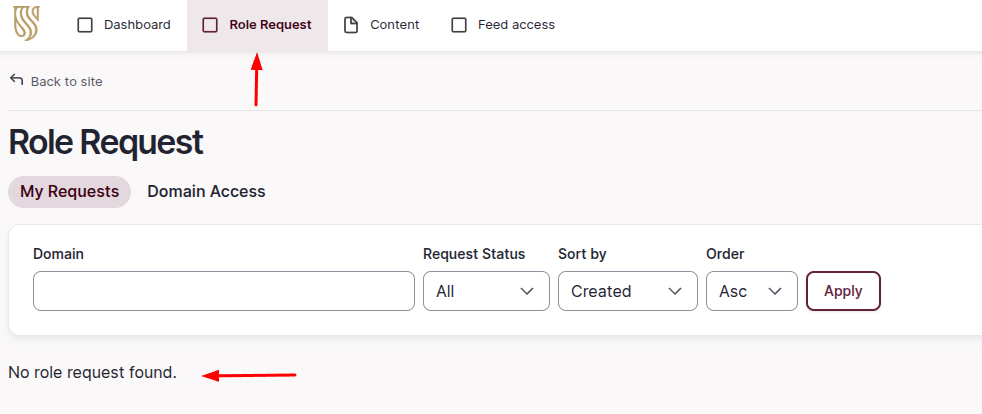
Initiate a New Request: Click on "+ Add Role Request" to start a new submission, located at the top right of the screen.

Complete the Form: You will be redirected to a form where you need to specify the "Domain", "Subsite(s)" you require and the "Role" you are requesting.
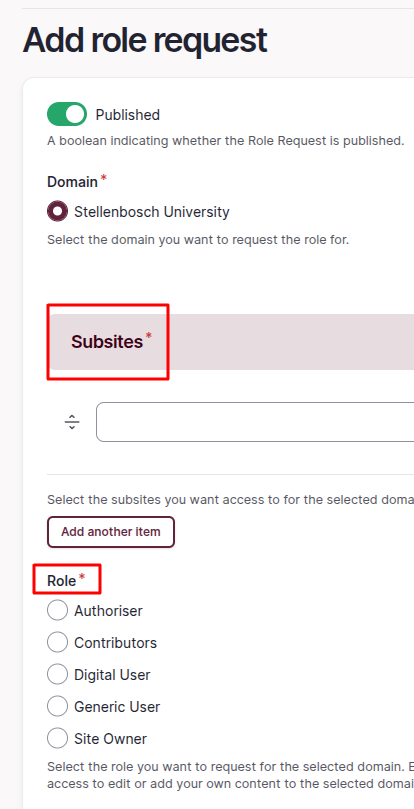
Submit Your Application: After filling in all the necessary information, click "Send Request" to submit your application.

Important note: Please don't do multiple role requests for the same site - only request the highest level of access you need. For example, if you do a request to be a Site Owner, you don't also need to request the role of Media Contributor since the Site Owner role already has the same permissions as a Media Contributor.