
Print, copy and scan
Print from the library's computers
Students are able to print by logging in to a library computer with their SU username and password, open a document, and select the printer from the print dialogue. They can release their print jobs at any of the Safecom Secure Pull Print printers in the libraries by using their student/staff card, provided they have enough print credits.
Print from your laptop
When On-campus, you will be able to print from your laptop via the Eduroam Wi-Fi network, which is the default for students and staff, requiring device registration via the RegisterMe! portal.
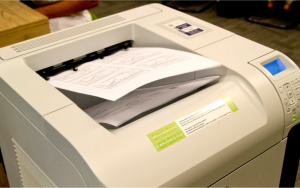
Printing instructions
All libraries' computers are connected to the 'Safecom Secure Pull Print' management system on the campus.
- First, make sure you have a sufficient amount for printing before you TAP your student card on any Safecom-enabled library printer, which will initiate printing. Your previously raised print service requests total can be viewed in the top half of the screen in the All Requests tab.
- If you don’t have, request printing money online via SUNStudent or make payments directly into your student account by SnapScan or Card / EFT.
- Once the money has been credited to your student account, request your print job from a library computer or your laptop.
- Click Print, choose \\stbsc01.stb.sun.ac.za\STB_PRINT_Q01 or \\stbsc05.stb.sun.ac.za\STB_PRINT_Q05 printer from the list.
Note: You can check if your print jobs are in the print server queue - before going to the printer. Login at: https://stbprint.sun.ac.za/safecom. - Then TAP your student card on any Safecom-enabled library printer, to release your print jobs from the print server.
- The University's printing fees is available on the Information Technology service catalogue.
IT Help?
Request Print Amount Online
- Log onto SUNStudent: https://student.sun.ac.za
- On the left side of the screen select: Requests
- In the opened window, click on: All Requests. Your previously raised print service requests amount can be viewed in the top half of the screen in the All Requests tab.
- For a new Printing service request, click on the button: Raise Request
In the pop-up window, click on: Printing Quota and select Printing Services in the 'Request Category' field. - Enter an Amount for printing service. (The University's printing fees is available on the University's IT Service catalogue).
- Click on Upload & Submit and in the Documents screen that opens, then click on: Save.
- Await the email confirming that the money has been credited to your student account.
As an alternative, choose one of the prepaid services listed below to make print payments directly into your student account by using SnapScan or Card/EFT:
Prepaid via SnapScan
SnapScan is a mobile application that enables cashless payments. The SnapScan PREPAID feature offers students the ability to purchase prepaid services (printing credits, laundry quota or meals) and to top-up their student accounts.
- Download SnapScan. Press PREPAID and select Prepaid UNIVERSITY.
- Enter your student number and amount for credits.
- You will be able to print once your print amount request appears in your student account.
Card/EFT Payments
Only credit cards that are registered for “3D Secure" are acceptable for payment.
- Online Payment (Click here).
- After receiving notice that the card payment was successful, please check your bank statement first to confirm that the payment was done successfully.
- You will be able to print once your print amount request appears in your student account.